
Connecting an AI Phone Assistant with Your Apps: 8 App Categories in n8n
CRM, Slack, calendar, ticketing: with the VOICO n8n node, the AI phone assistant becomes part of your tool landscape. 8 app categories with concrete workflow ideas.


Yash Pai, VOICO team
11 October 2026 · 10 min read
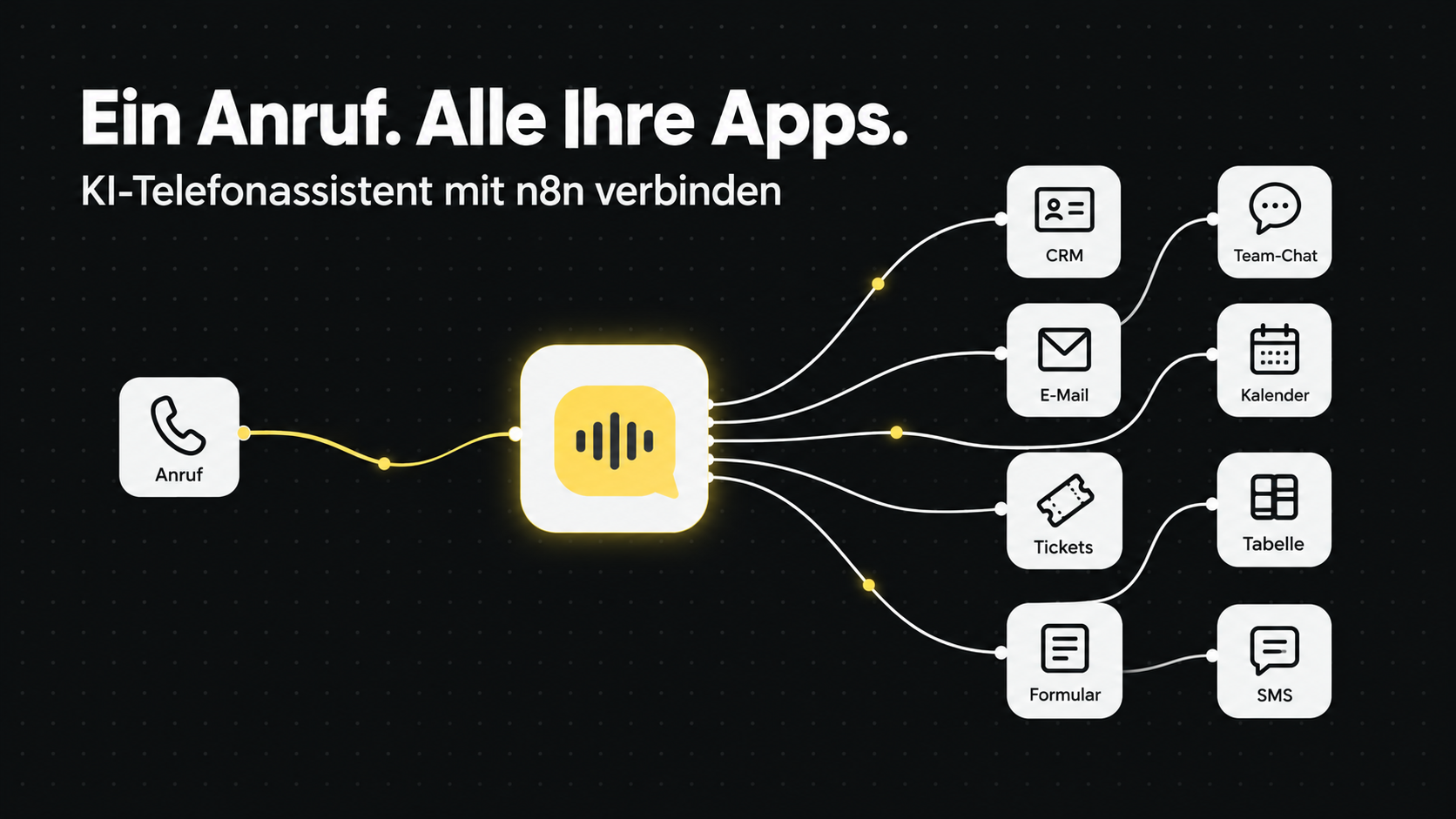
Most companies work with a dozen tools at once: CRM, calendar, email, Slack, ticketing, spreadsheets. The phone often sits off to the side. Whatever is discussed on a call, someone types into one of those systems by hand later, or it gets lost.
With the VOICO n8n node, the AI phone assistant becomes part of that tool landscape. n8n comes with connections to hundreds of apps. So a call can use data from any of them, and the result of a conversation can flow back into any of them.
This post shows eight app categories that combine especially well with an AI phone assistant, each with concrete workflow ideas. For the basics of connecting VOICO and n8n, see our overview post on the VOICO n8n node.
In short
n8n connects apps through workflows. The VOICO node makes the AI phone assistant a building block in those workflows: an app can trigger a call, and the call result can start actions in other apps.
How the connection works
Every workflow follows the same three-part pattern:
- Trigger: Something happens in an app, for example a new lead in the CRM or a completed questionnaire. Or an incoming call to the AI phone assistant.
- Call: The AI phone assistant has the conversation and returns a structured result, such as summary, category and next step.
- Action: n8n sends the result to the right apps: update the CRM, notify the team, add an appointment.
You can freely combine which apps you use for trigger and action. That's exactly what makes n8n so flexible for telephony.
The 8 app categories at a glance
| Category | Example apps in n8n | Typical use with the AI phone assistant |
|---|---|---|
| CRM | HubSpot, Pipedrive, Salesforce | Call leads, save call results on the contact |
| Team communication | Slack, Microsoft Teams | Notify the team about important calls in real time |
| Gmail, Microsoft Outlook | Send confirmations and follow-ups after the call | |
| Calendar | Google Calendar, Microsoft Outlook | Log appointment requests, trigger reminder calls |
| Support and tasks | Zendesk, Freshdesk, ClickUp, Jira | Create tickets and tasks from service calls |
| Spreadsheets and databases | Google Sheets, Airtable, Notion, PostgreSQL | Log calls, manage call lists for campaigns |
| Forms and website | Typeform, webhooks, website forms | Answer requests right away with a call |
| SMS and messaging | Twilio, WhatsApp Business | Send a summary or link by message after the call |
These apps are examples of integrations n8n offers. Many more can be connected through custom nodes or direct API calls.
1. CRM: HubSpot, Pipedrive, Salesforce
For most companies, the CRM is the AI phone assistant's most important partner. That's where the contacts are, and where the results should go.
- New lead → call: As soon as a lead is created in the CRM, the AI phone assistant calls and asks first qualification questions.
- Call → update contact: After every call, summary, category and next step are saved as a note or activity on the contact.
- Move deal stage: If a lead is qualified, the workflow moves the deal to the next pipeline stage automatically.
Tip
Check whether the contact already exists before creating it. Otherwise duplicates pile up fast.
2. Team communication: Slack and Microsoft Teams
Not every call needs a human right away. But some do.
- Hot lead: A qualified prospect triggers a message in the sales channel, with name, request and a link to the CRM contact.
- Urgent case: If the AI phone assistant detects a complaint or urgent request, the responsible person is mentioned directly.
- Daily summary: Once a day, a workflow summarizes how many calls came in and which are still open.
3. Email: Gmail and Microsoft Outlook
Email works well for anything the caller wants to read again after the call.
- Confirmation: After the call, the caller gets an email with the points discussed.
- Follow-up: If someone wants a quote, a template is filled with the right data and saved as a draft for sales. That way a person checks it before anything goes out.
- Email → call: The other way round, an incoming email can trigger a call, for example when a customer asks for a callback by email.
4. Calendar: Google Calendar and Microsoft Outlook
- Log appointment requests: The AI phone assistant captures a preferred time, and the workflow adds it as a tentative appointment or creates a request for the team.
- Reminder call: The day before, the AI phone assistant calls to remind about the appointment. If someone cancels, the slot is freed in the calendar.
- Check availability: Before the call, the workflow reads free slots so the assistant can suggest suitable times.
Important
A free calendar slot doesn't mean all resources are available. Binding bookings should go through your main booking system.
5. Support and tasks: Zendesk, Freshdesk, ClickUp, Jira
- Service call → ticket: Every service call becomes a ticket with summary, category and urgency.
- Add to existing ticket: If a customer calls about an open case, the call is saved as a comment on the ticket.
- Task for the team: A callback request becomes a task with due date and owner in ClickUp or Jira.
6. Spreadsheets and databases: Google Sheets, Airtable, Notion, PostgreSQL
- Call log: Every call is saved as a row with date, category and result. A simple basis for reporting.
- Call list for campaigns: A sheet of contacts drives a series of calls. Each call's result is added to the same row.
- Context for the call: Before the conversation, the workflow pulls relevant info from a database, such as order status or contract details.
7. Forms and website: Typeform, webhooks, website forms
This is one of the strongest levers: someone filling out a form is interested right now. A call a few minutes later hits exactly that moment.
- Form → call: A webhook receives the request, the AI phone assistant calls and clarifies the details.
- Questionnaire → targeted call: Form answers feed into the call so the assistant doesn't ask the same things again.
8. SMS and messaging: Twilio, WhatsApp Business
- Summary by message: After the call, the caller gets the key points by SMS or WhatsApp.
- Send a link: If the caller needs a form, directions or a booking link, it's sent right away.
- Not reached: If nobody picks up, a short message explains why you called and offers a callback.
Legal note
For SMS or WhatsApp messages you need a suitable legal basis, especially for marketing. Sort that out before switching these workflows on.
Example: one call, five apps
Here's how a single workflow can connect several apps. A prospect fills out a form on your website:
- Website form (webhook): The request comes in and starts the workflow.
- HubSpot: The workflow checks whether the contact already exists and creates it if not.
- VOICO: The AI phone assistant calls and qualifies the prospect.
- IF node – qualified? If yes: create a deal in HubSpot, message sales in Slack and log the appointment request in Google Calendar. If no: send info material via Gmail.
- Google Sheets: The call is logged with its result.
Sales sees the lead in Slack before even opening the CRM. The prospect gets a response either way. And every call is documented for reporting.
Tips for building it
- Start small: Begin with two apps, for example the AI phone assistant and your CRM. Add more only once the first flow runs reliably.
- Fixed categories, not free text: Have the assistant return results like "qualified" or "callback requested." That lets the workflow branch cleanly.
- Plan for errors: What happens if the CRM doesn't respond or nobody picks up? An error workflow with a Slack alert shows problems right away.
- Only pass on what's needed: Not every app needs the full transcript. A short summary is often enough.
- Check data protection: Every connected app processes personal data. Clarify hosting and data processing agreements for each one.
Which workflow would make the biggest difference for you?
Which apps do you use today, and where do things get lost on the phone? In a short intro call, we'll look at your tool landscape and show which workflow with VOICO's AI phone assistant makes the biggest difference.
Book an intro callFrequently asked questions
Want to test Voice AI in your business?
In 15 minutes we'll clarify your use case and show how VOICO goes live in your setup.
Book a demo